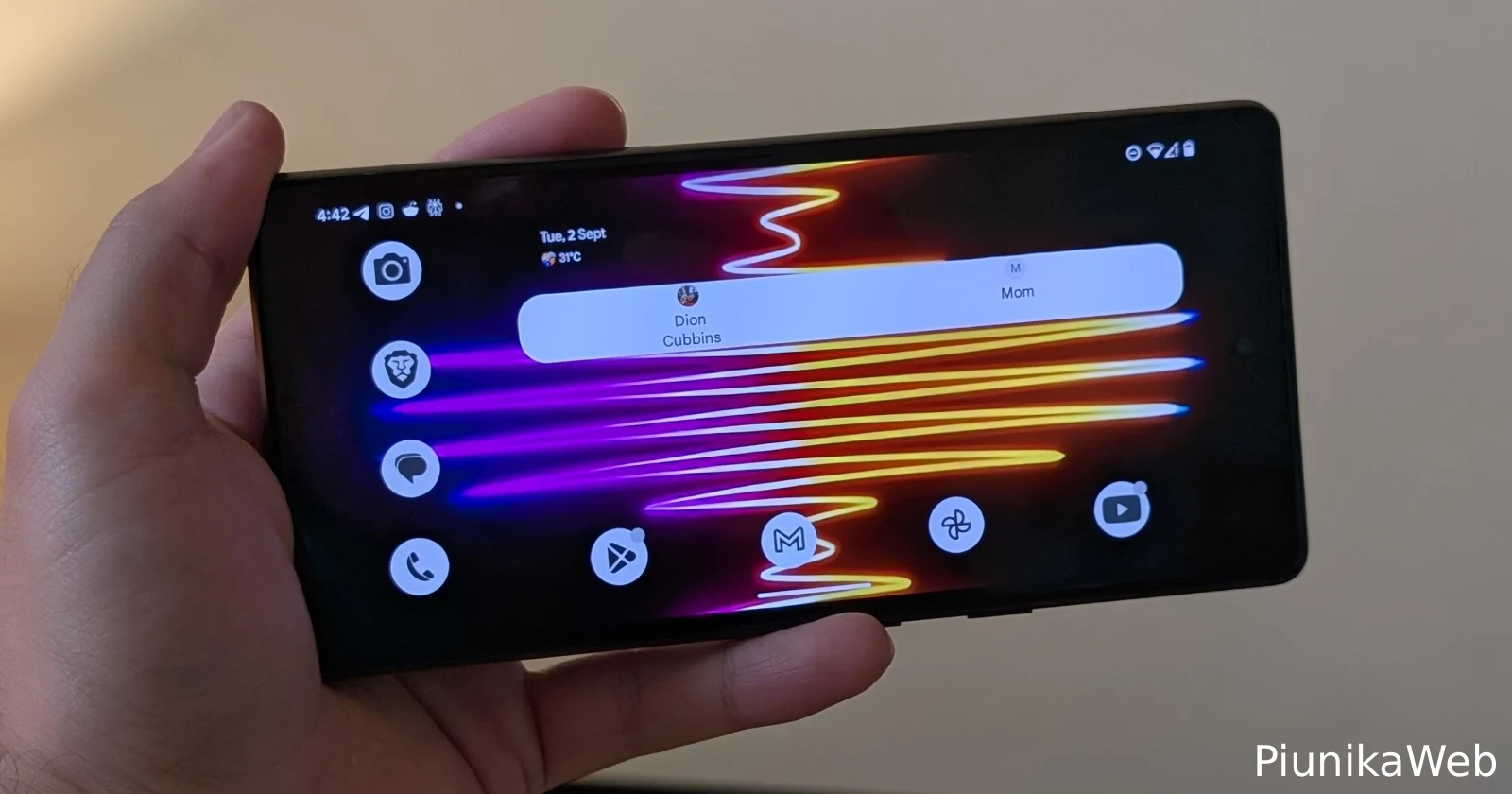
Google’s love for “improving” things that were already fine has struck again. With a recent Pixel update, the familiar home screen search bar quietly changed behavior, and not everyone is thrilled. If you preferred the old Pixel Launcher unified search experience, the one that neatly combined apps, contacts, and device results, you’re not out of luck yet.
Here’s a simple how-to for Pixel users who want the old UI back, at least for now.
What changed with the Pixel home screen search bar
Following a recent Pixel update, Google modified how the home screen search bar works. Instead of opening Pixel Launcher’s unified search interface, tapping the bar now launches the standard Google Search UI.
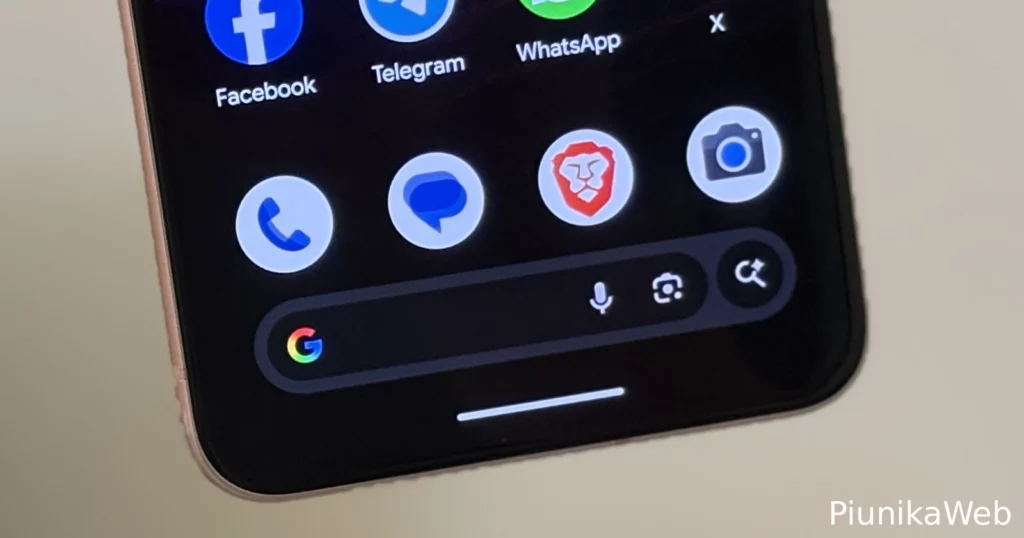
The new interface makes it easier to jump into things like AI Mode, but it also strips away some of the tighter Pixel Launcher integration. For many users, it feels like a step backward rather than forward, especially if you relied on fast, on-device results.
How to restore the old Pixel Launcher search UI
If you’re comfortable using ADB, there’s a workaround that can force Pixel Launcher to use the old unified search again. This involves overriding a launcher flag that Google uses to control the new behavior.
First, make sure you have ADB set up on your computer and enabled for your Pixel device. Once that’s done, connect your phone and run the following commands one by one:
adb shell cmd device_config override launcher enable_one_search true
adb shell am force-stop com.google.android.apps.nexuslauncher
The first command overrides the enable_one_search flag that Pixel Launcher reads at runtime. Setting it to true forces the launcher to use the unified search experience instead of the standard Google Search UI. The second command simply restarts Pixel Launcher so the change takes effect immediately.
If you want to undo this later, run the same command again but replace true with false.
Does this workaround actually work?
Yes, at least for now. The workaround has been confirmed to work on the current December 2025 Pixel stable update, as well as on Android 16 QPR3 Beta 1. That said, there’s no guarantee Google won’t break or remove this option in a future update. Pixel Launcher flags have a habit of disappearing once Google decides an experiment is “done.”
For users who strongly dislike the new home screen search behavior, this ADB trick offers a temporary escape hatch. Just don’t get too attached. This is Google we’re talking about.


Hillary Keverenge
2577 Posts
Tech has been my playground for over a decade. While the Android journey began early, it truly took flight with the revolutionary Lollipop update. Since then, it's been a parade of Android devices (with a sprinkle of iOS), culminating in a mostly happy marriage with Google's smart home ecosystem. Expect insightful articles and explorations of the ever-evolving world of Android and Google products coupled with occasional rants on the Nest smart home ecosystem.
Next article View Article